- Your main location pricing is set in a stable currency, but customers need to pay in your local currency.
- Specific customers (e.g, foreigners) require payments in a different currency.
Add an alternative currency
- Go to Location settings > Billing > Currencies tab.
- In the Alternative currencies section, press Add currency.
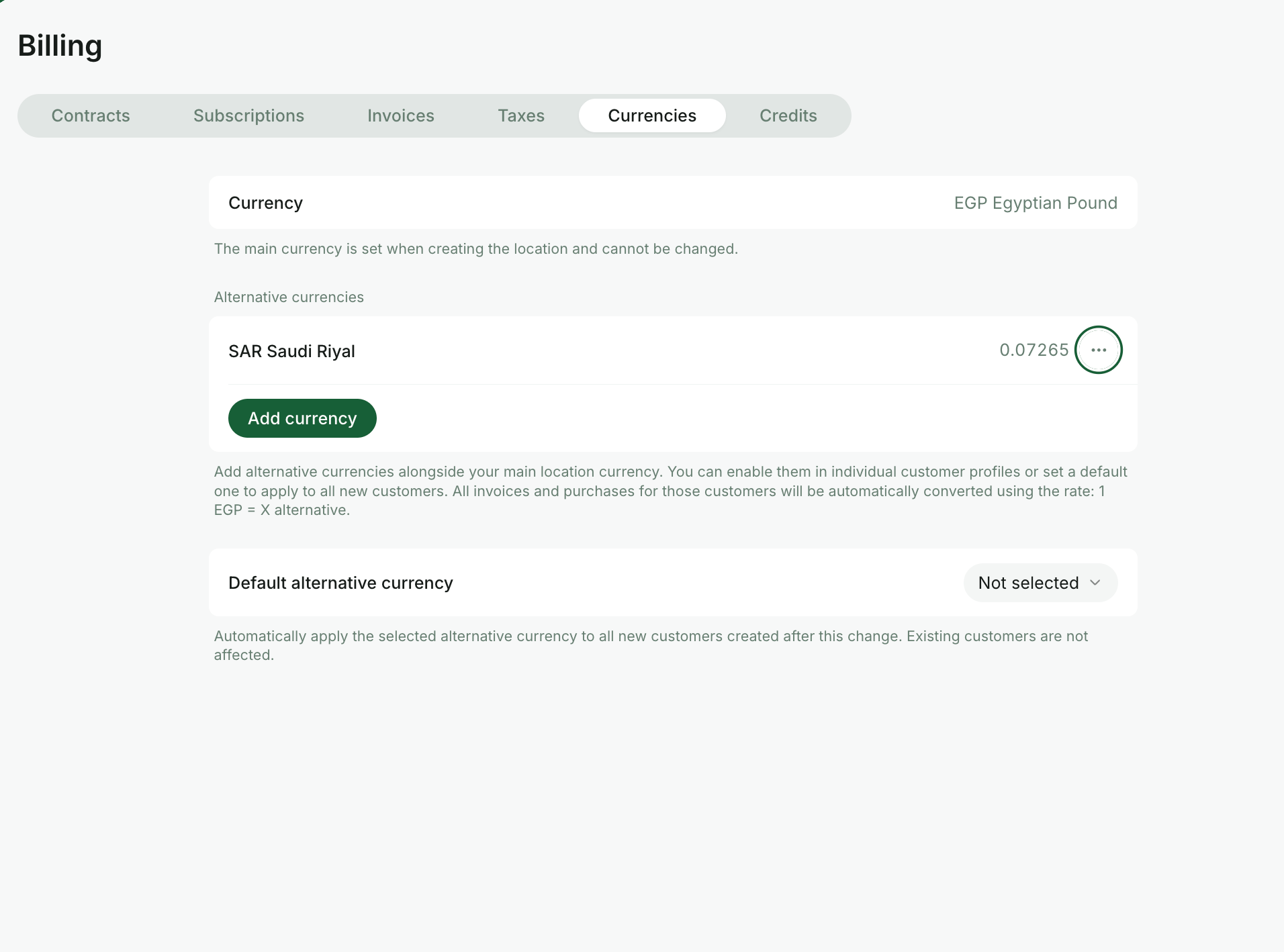
- Select the currency.
- Choose how the exchange rate is updated:
- Turn on Auto-update rate and select a Provider. Rates are updated once per hour based on the provider’s data. Available providers:
- Central Bank of Argentina (BCRA) — for conversions to and from ARS (Argentine peso).
- Central Bank of Chile (BCCH) — for conversions to and from CLP (Chilean peso) and CLF (Unidad de Fomento).
- National Bank of Georgia (NBG) — for conversions to and from GEL (Georgian lari).
- National Bank of Ukraine (NBU) — for conversions to and from UAH (Ukrainian hryvnia).
- European Central Bank (ECB) — converts between any two supported currencies via EUR.
- fastForex — deprecated, can’t be selected for new currencies.
- Leave Auto-update rate off and update the rate manually when needed.
- Turn on Auto-update rate and select a Provider. Rates are updated once per hour based on the provider’s data. Available providers:
Apply an alternative currency
To all customers
- Go to Location settings > Billing > Currencies tab.
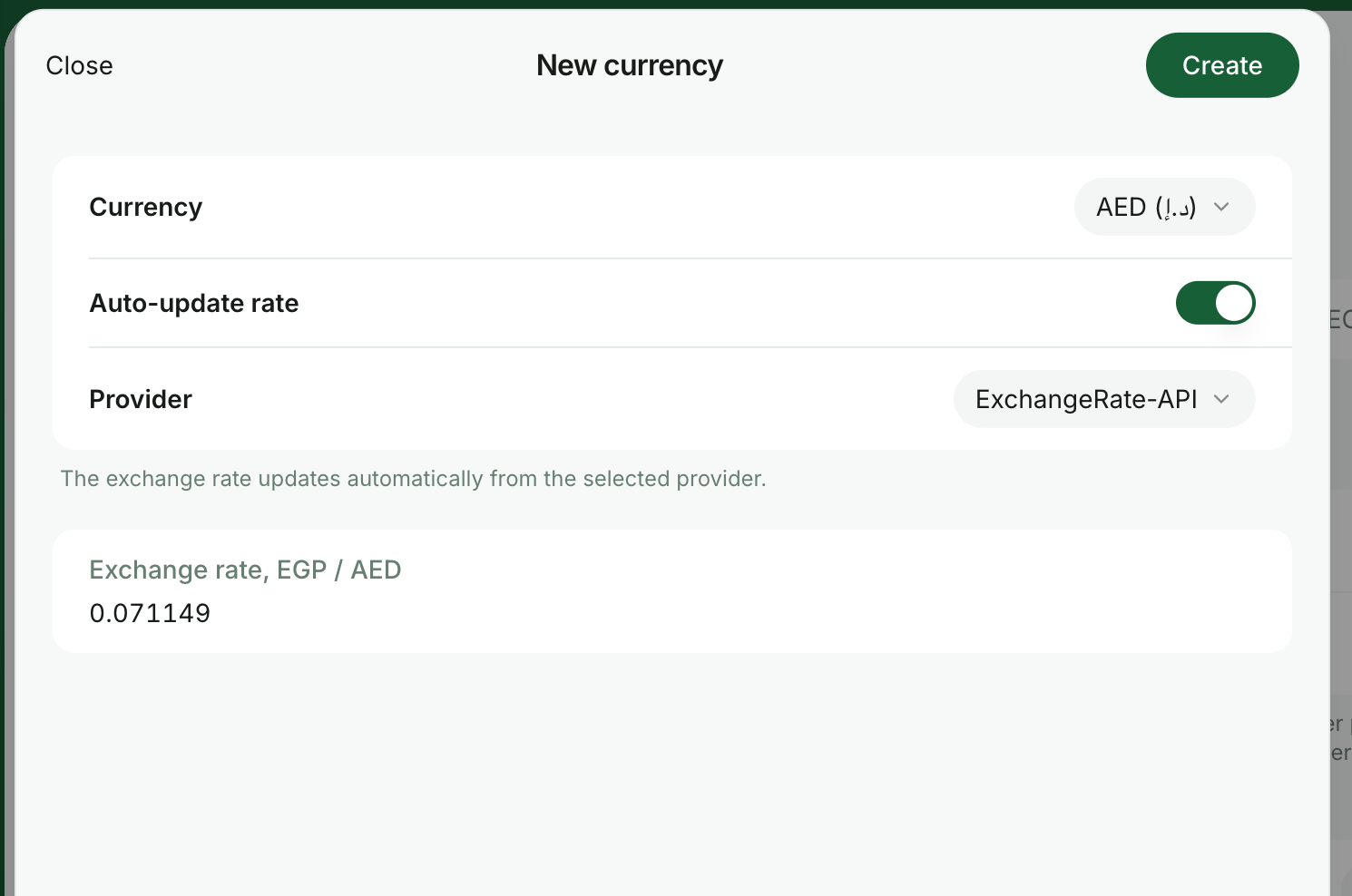
- Add an alternative currency.
- Select it as the Default alternative currency.
The default alternative currency will apply to all customers who register after you set it. Your existing customers won’t be affected. If necessary, apply it manually in their profiles.
To specific customers
- Go to the Customers page > open the customer’s profile.
- On the right-hand panel, enable Alternative currency and choose the currency.
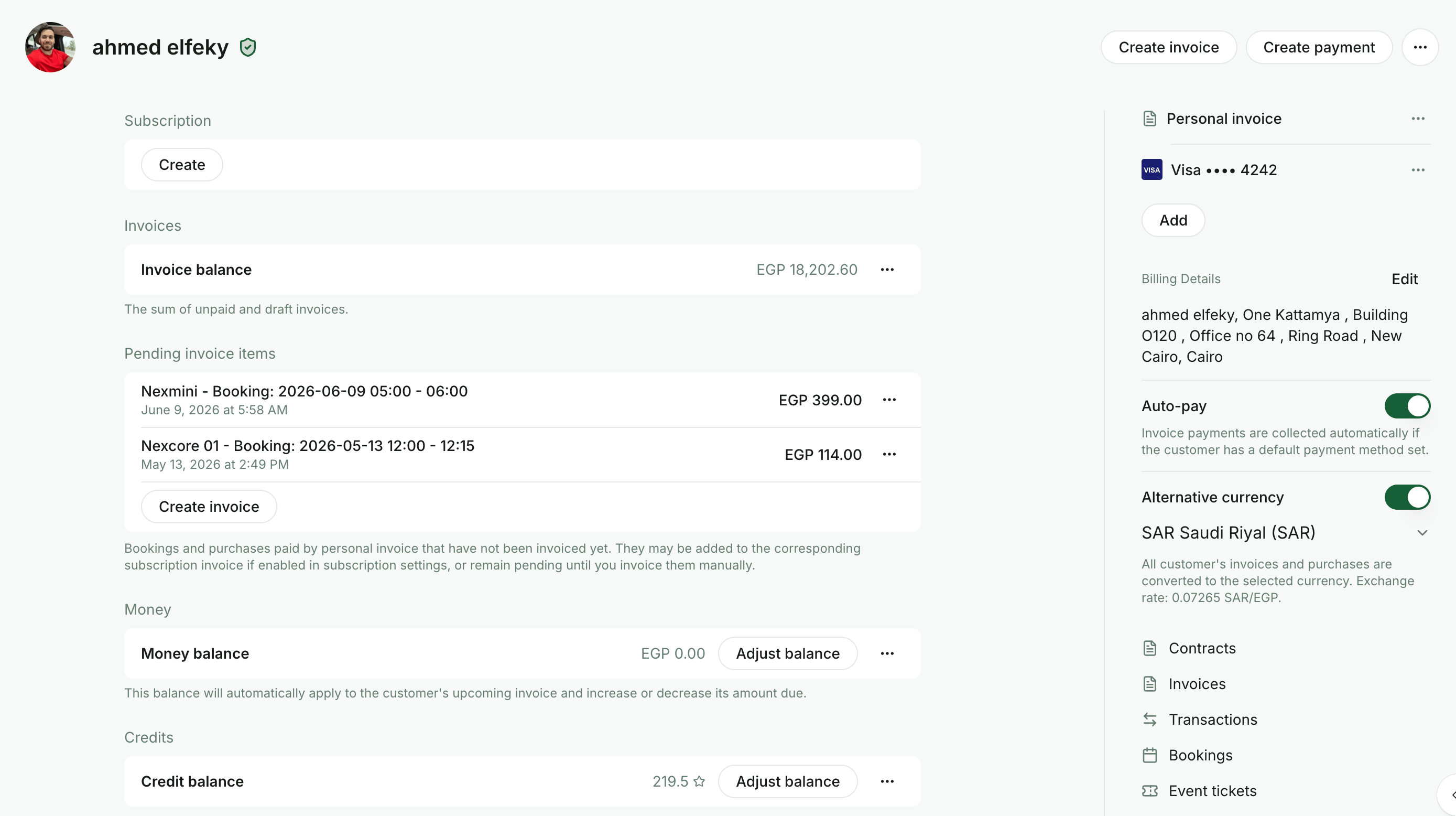
How alternative currency works
One-off purchases
- Customers see prices for all resources and services in your main currency (e.g., USD).
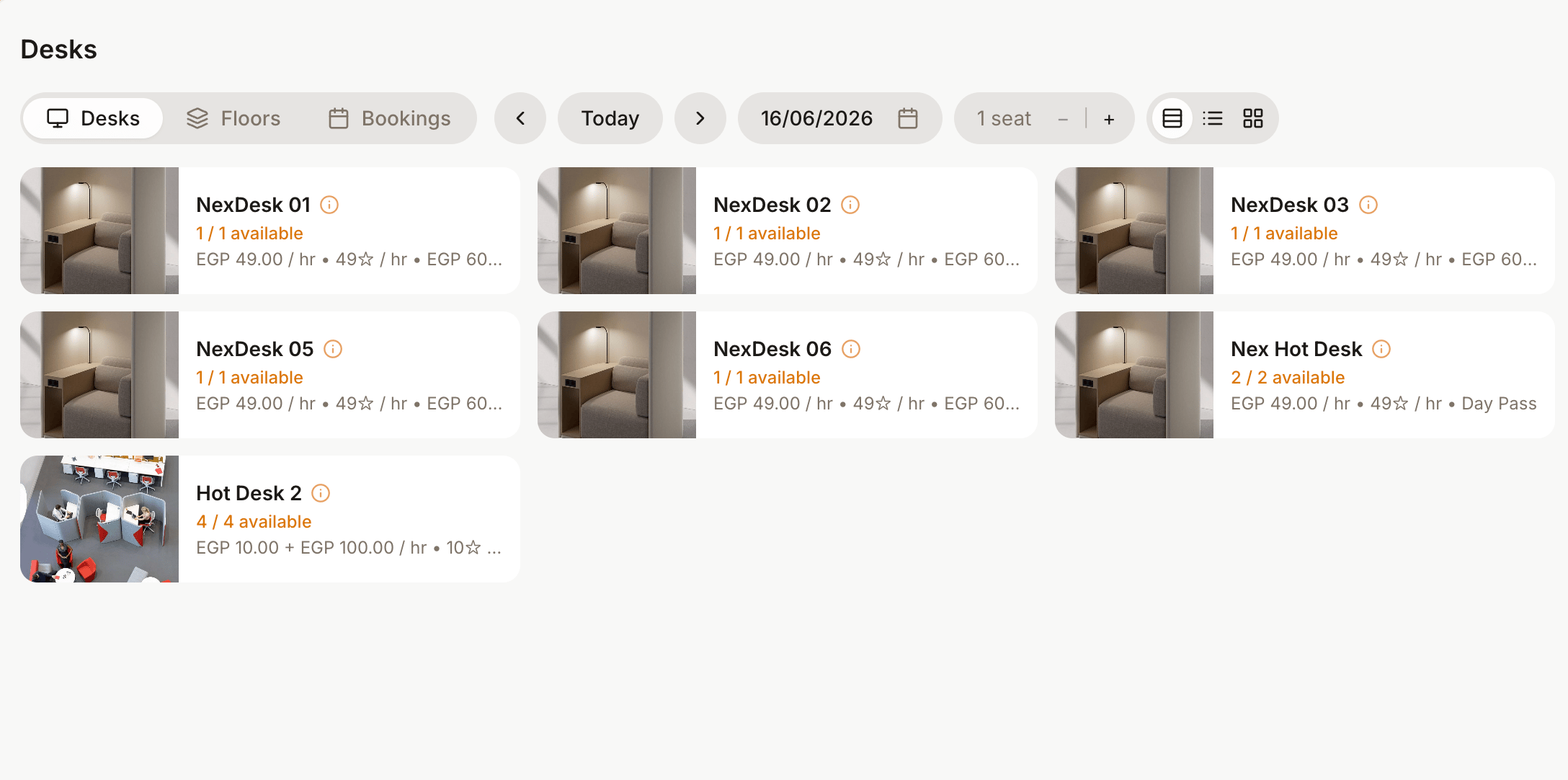
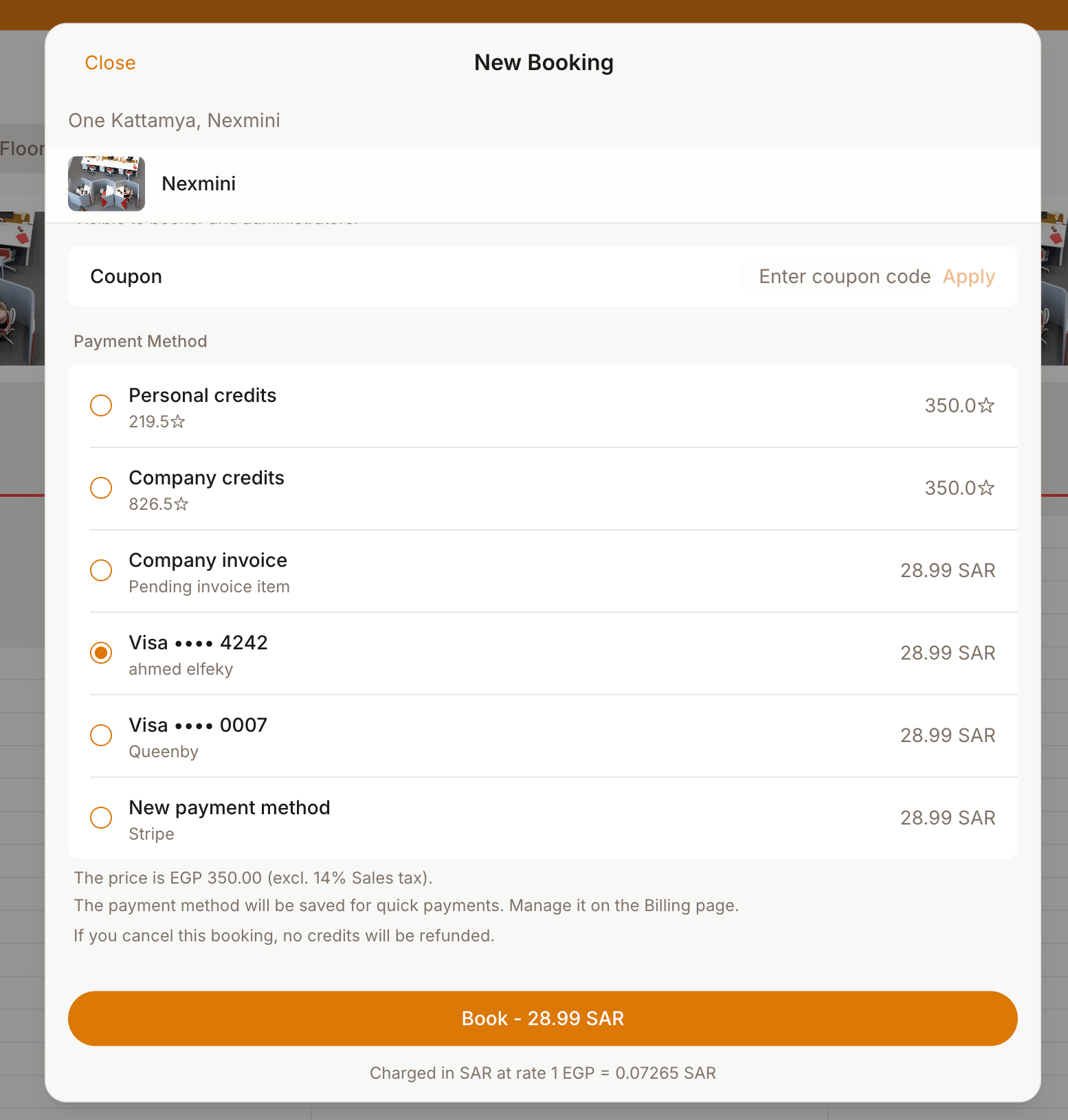
- When they start a booking or make a purchase, the amount is automatically converted using the current exchange rate.
- At checkout, customers see the converted amount in the alternative currency (e.g., EUR).
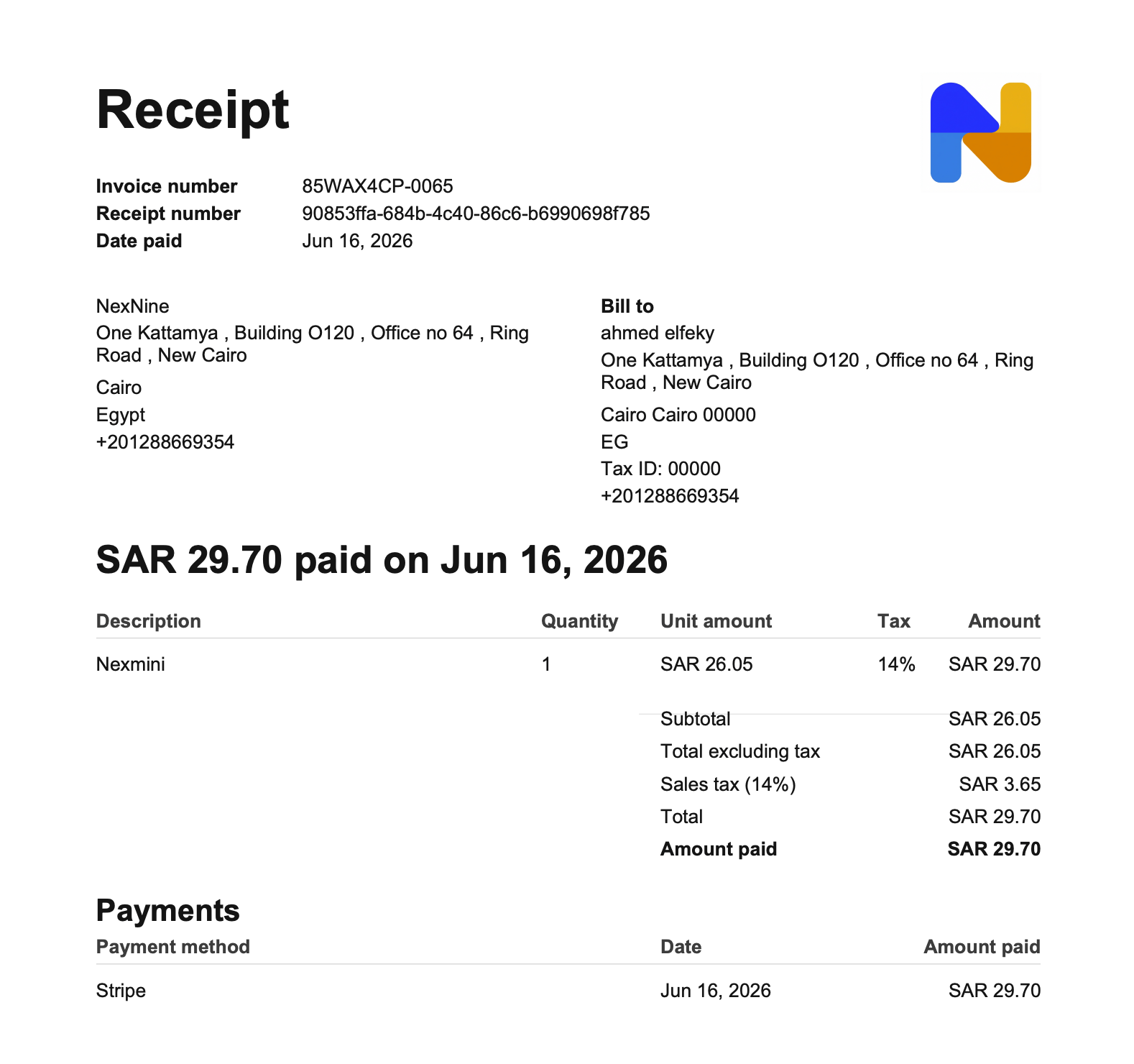
- Receipt breakdown displays the amounts in the alternative currency, too.
Invoices
- Invoice drafts appear in the main currency.
- When the invoice is issued, the system converts the amounts using the exchange rate at that moment.
- After issuance, the invoice breakdown and PDF appear in the alternative currency (e.g., EUR).