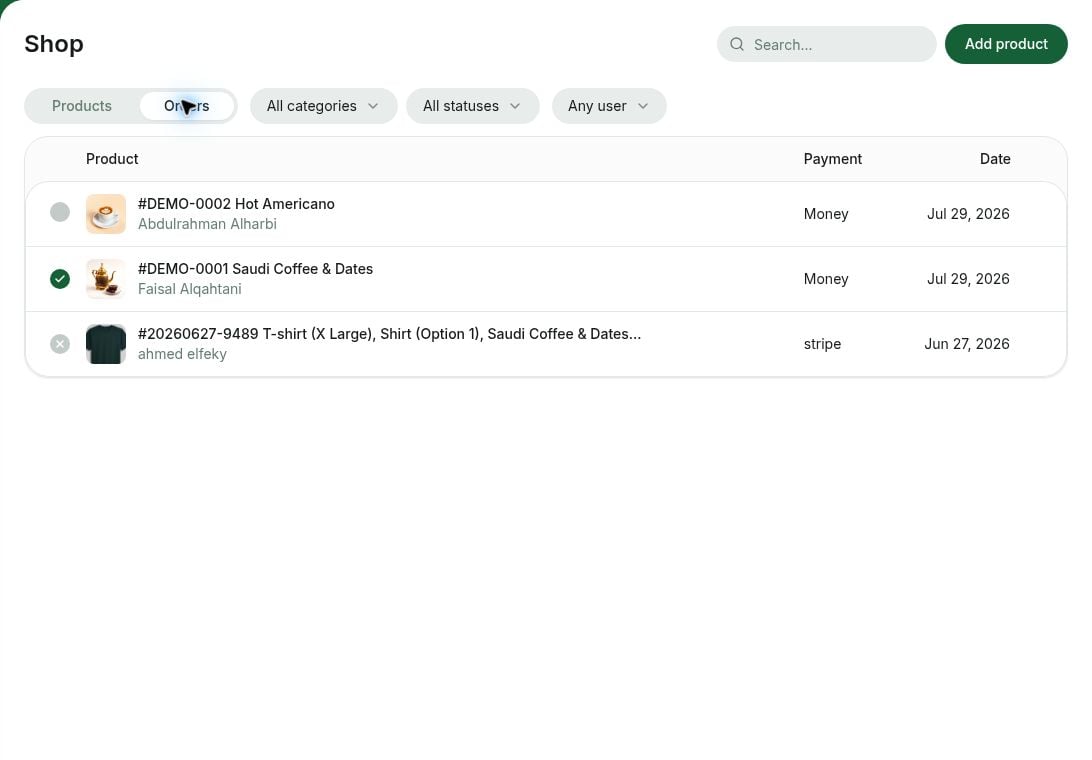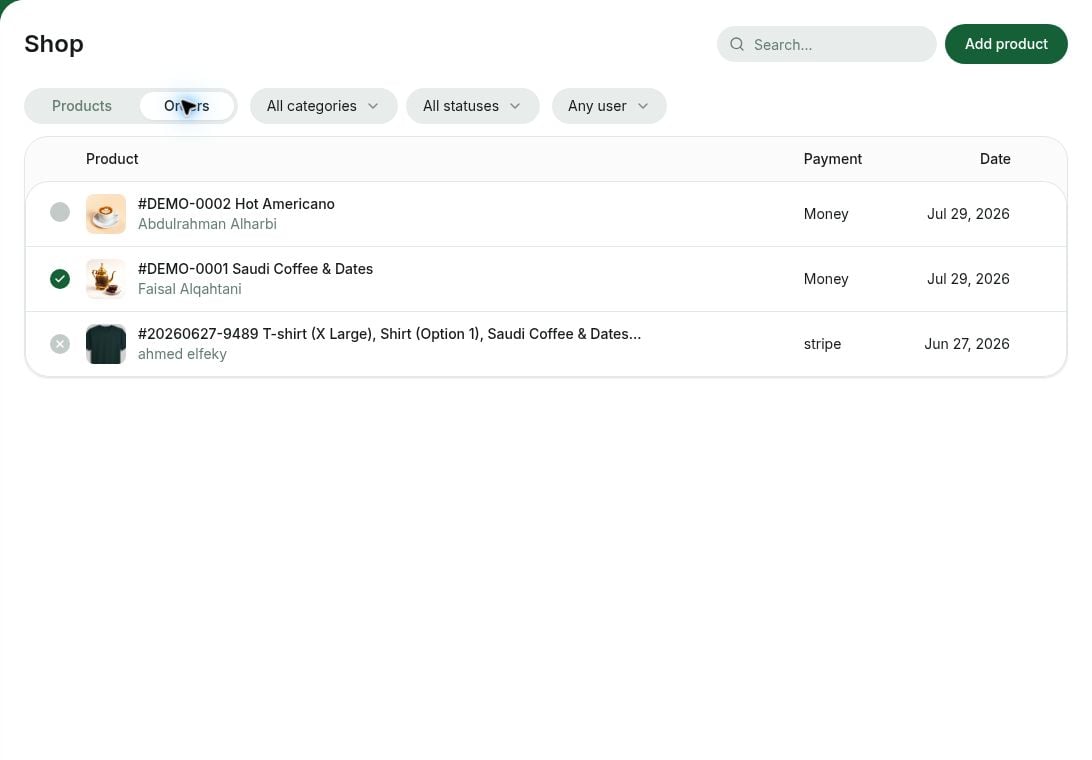
Manage orders
Once a customer places an order, open it from the Orders panel to view its details:Find and filter orders
Filter orders on the Orders panel to find what you need:- Filter by Status to see New, In progress, Completed, or Canceled orders.
- Filter by Category to see orders from a specific shop category.
- Filter by Product to see orders that include a specific product.
- Filter by User to see all orders of a specific customer.
- Filter by Create date to see orders created on, before, after, or between specific dates.
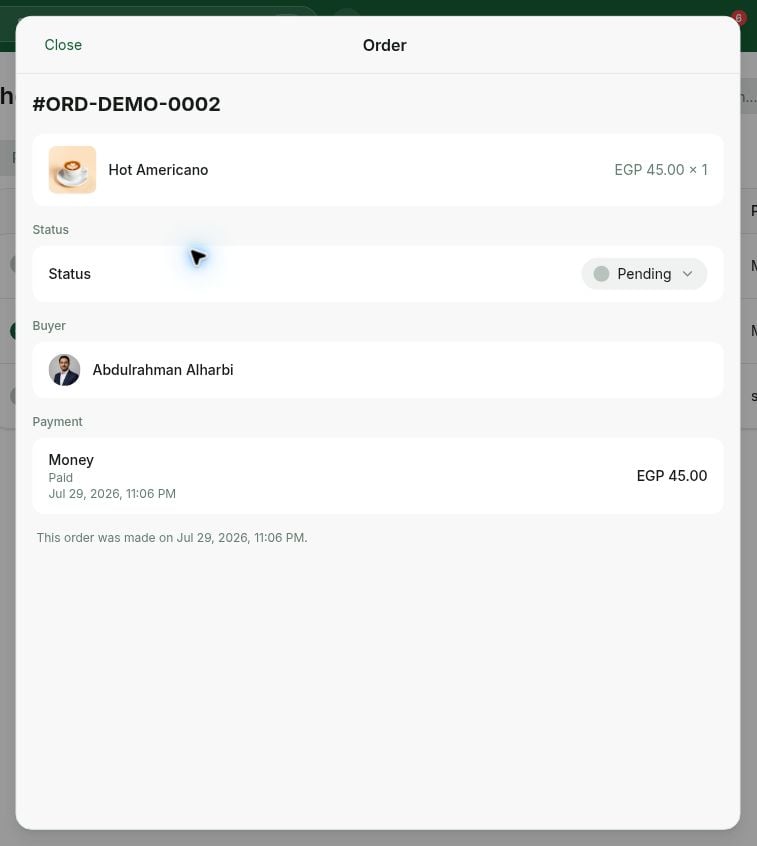
Change an order’s status
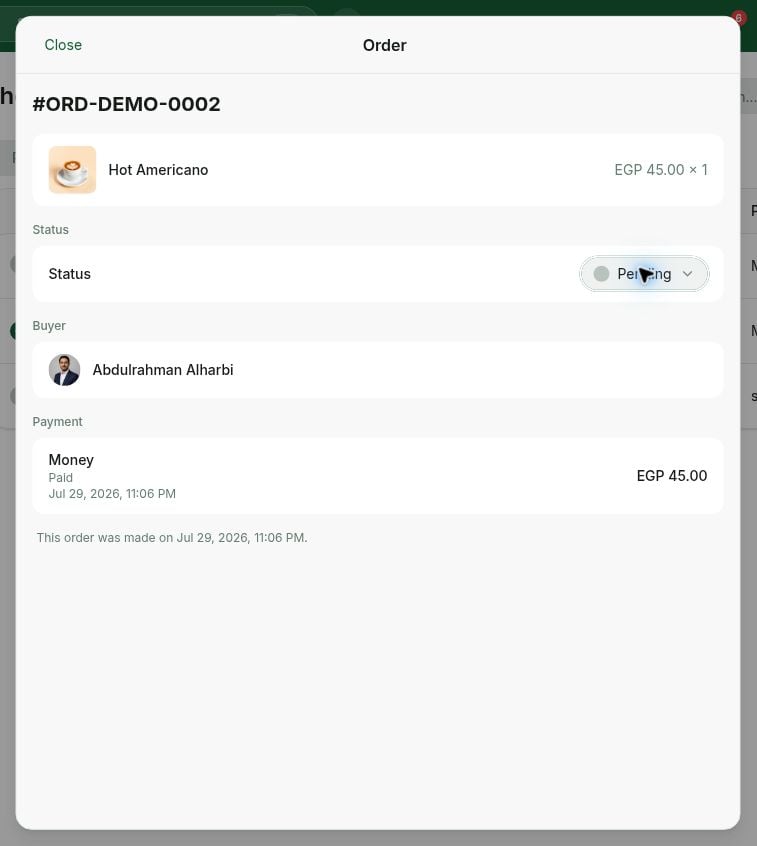
Only administrators can change an order’s status. Click the Status icon next to the order — or open the order and use the Status field — and choose the new status. The customer receives a push notification when their order status changes.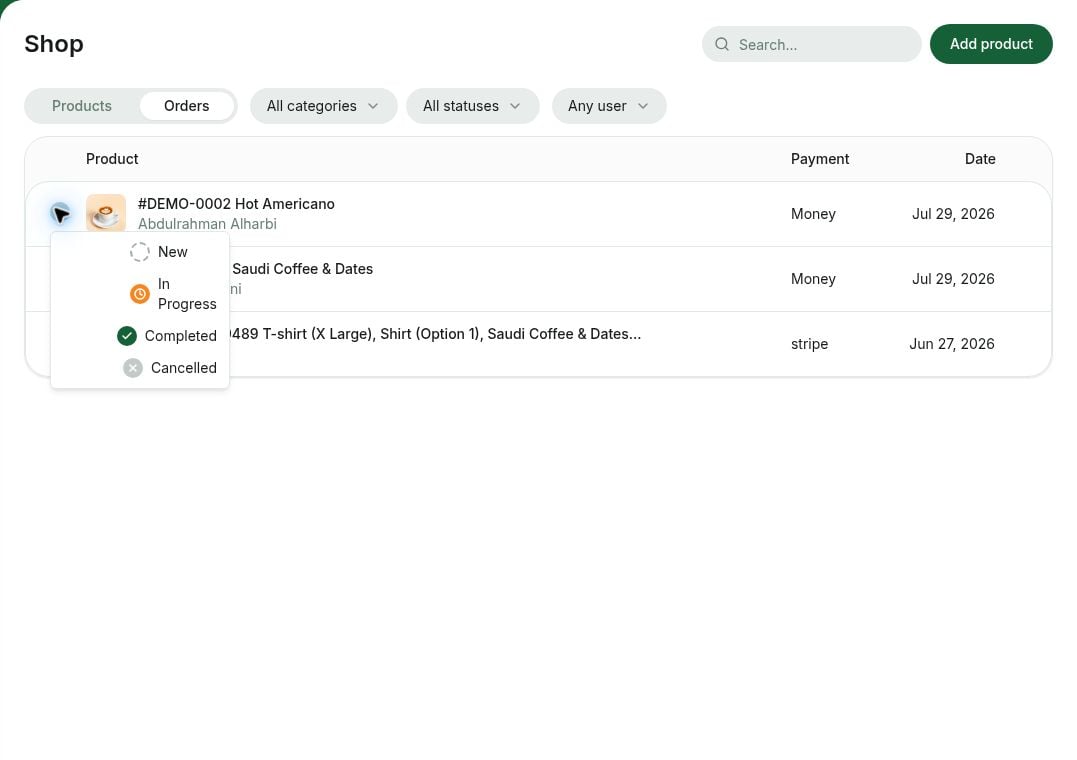
Cancel an order and issue a refund
To cancel an order — for example, if the product is out of stock or there is an issue with it — set its status to Canceled. You’ll be asked to confirm whether the customer is eligible for a refund; canceling does not refund automatically. If you confirm, the refund is issued automatically. Understand refunds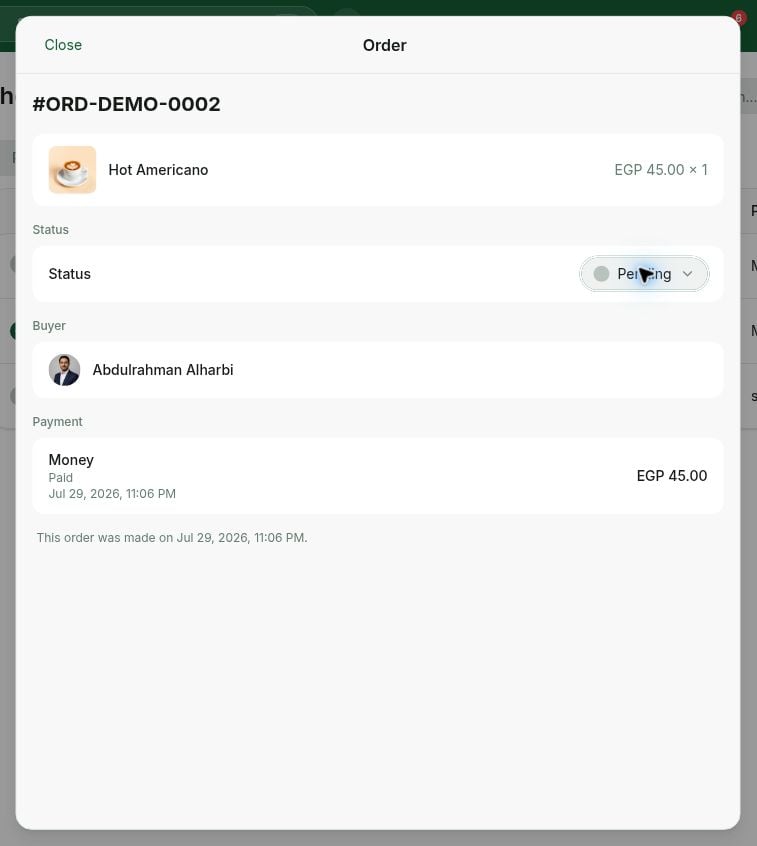
View order status
Users can view the status of their order by following these steps:- Click on their profile picture in the bottom left corner to open the Account page.
- Go to the Orders section to view the status of their orders.
Check analytics on order statuses
Get a consolidated overview of all orders with the specific status on the Analytics page.- Open the Analytics page > choose Shop dashboard.
- Check the Orders by status graph and choose the specific time periods for the overview.